Creating a Balanced Visual Field With Equal Spacing Between Dual Monitors
Position both monitors at eye level, with the tops slightly below your gaze, and set them 20–30 inches from your eyes for a balanced visual field. Angle each screen 15–30 degrees inward, creating a seamless V-shape with no more than a 2-inch gap per foot of distance. Match heights and distances exactly to reduce strain and support neutral posture-use adjustable arms for precision. A 60-inch desk guarantees enough space; smaller setups risk crowding despite perfect alignment. You’ll find deeper insights just ahead.
Notable Insights
- Position both monitors at equal distance from your seating position to maintain visual consistency and reduce eye strain.
- Align the tops of both screens at or slightly below eye level for a balanced and ergonomic gaze.
- Angle each monitor 15–30 degrees inward to create a natural visual flow and minimize neck movement.
- Keep the gap between monitors no more than 2 inches per foot of viewing distance for seamless transitions.
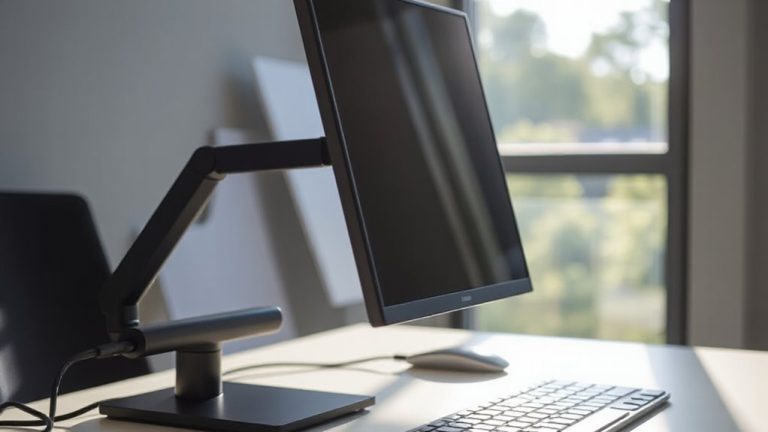
- Use adjustable monitor arms to ensure equal height, depth, and symmetric alignment for a unified visual field.
Set Up Your Dual Monitors for Comfort
While you’re aiming to boost productivity with dual monitors, don’t overlook how their physical setup affects your comfort and long-term health. Proper monitor orientation-aligning both screens at eye level and an equal distance from your seating position-reduces neck strain and encourages a neutral posture. Position them in a V-shape, angled slightly inward, so the edges face you, creating a seamless visual flow. Good cable management isn’t just about looks; routing power and data cables neatly prevents tripping and simplifies adjustments. Use adhesive clips or a cable sleeve to bundle cords together and keep them out of the way. Mounting arms or desk grommets help maintain stability and offer easier access for repositioning. While dual setups improve workflow, poor execution can cause fatigue. Even high-quality monitors won’t compensate for slouching or constant head turns. Balance function with ergonomics-your productivity depends on both. For optimal adjustability and workspace efficiency, consider using best monitor arms that support smooth height and tilt modifications.
Measure Your Desk and Viewing Distance
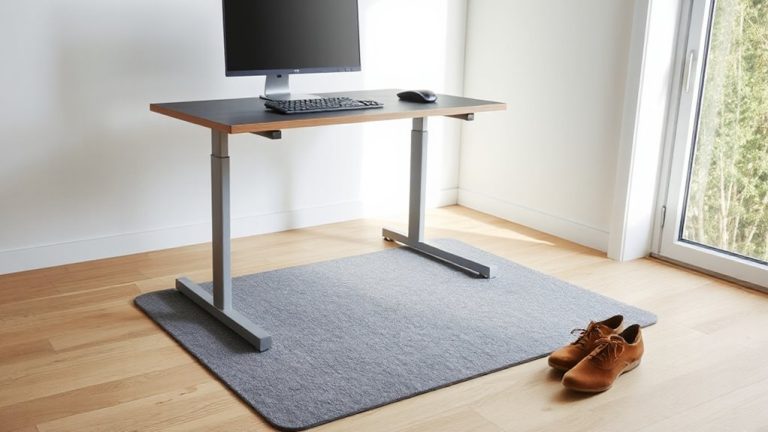
You’ve got your monitors angled for comfort, but the layout only works if your desk can actually support it. Proper desk dimensions are essential for effective viewing ergonomics. Measure your desk width and depth before finalizing placement-most dual-monitor setups need at least 55 inches of width and 30 inches of depth for ideal spacing.
| Desk Width (in) | Depth (in) | Fits Dual Monitors? |
|---|---|---|
| 48 | 24 | Tight, not ideal |
| 55 | 30 | Yes, with comfort |
| 60 | 36 | Ample room |
| 40 | 22 | No, too cramped |
Even with good viewing ergonomics, cramped desk dimensions strain posture over time. Make sure there’s enough space for keyboards and movement. Not every desk fits every setup-measure twice, buy once. A well-chosen best desks for dual monitor setups ensures long-term comfort and functionality.
Match Monitor Height to Eye Level
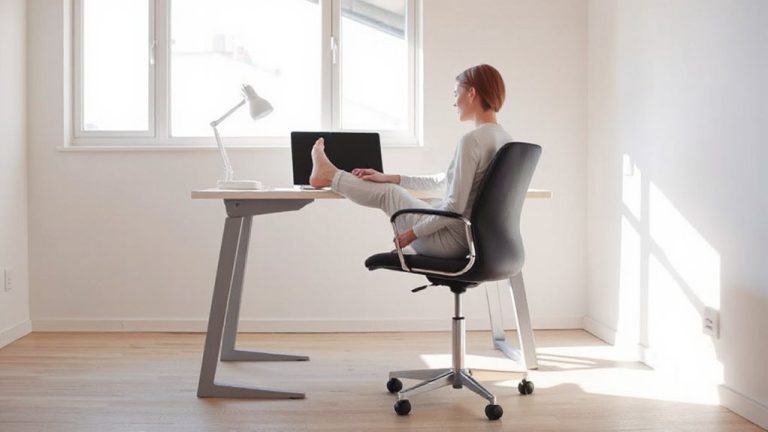
When positioning your dual monitors, setting the top of the screen at or slightly below eye level is key to maintaining a neutral neck posture and reducing strain over long work sessions. Proper monitor alignment secures your eyes don’t drift upward, which can cause fatigue. Adjusting height correctly promotes a healthy viewing posture-your gaze should land two to three inches below the screen’s top. If you use a laptop or low-mounted display, a simple riser or adjustable stand helps achieve ideal positioning. Most tested stands hold up under daily use, though cheaper models may wobble. Remember, even with perfect spacing, poor height ruins comfort. You can fix alignment fast, but long-term issues creep in if viewing posture stays off. Test adjustments over a full workday. Small changes make big differences, but don’t overlook desk thickness or chair height-they affect results too. For reliable elevation solutions, consider one of the Top Desk Riser Picks based on performance and stability.
Angle Both Screens for Seamless Flow
If your dual monitors sit flat on the desk without tilting inward, you’re likely straining your neck with every glance to the side-angling both screens toward you cuts that strain and creates a more natural line of sight across both displays. Proper screen alignment guarantees each monitor points directly at your eyes, reducing head turns and supporting visual symmetry. Aim for a 15-30 degree inward angle on each side; this matches your peripheral vision and improves focus. Use monitor arms with swivel joints or bases with rotation for precise adjustment. Keep the gap between screens proportional to their distance from you-typically no more than 2 inches per foot of viewing distance. While angled setups boost comfort, overly steep angles can distort clarity on IPS panels. Test different positions during real tasks, since small shifts affect long-term use. This isn’t about aesthetics-it’s functional positioning that reduces fatigue and keeps your workflow smooth without overpromising on gear.
Prioritize Your Primary Display
Your main monitor isn’t just the center of your dual-screen setup-it’s the anchor of your productivity. Make it your primary focus by placing it directly in front of you, aligned with your line of sight. This dominant screen should handle core tasks like document editing or video calls, while the secondary supports with references or chats. Positioning matters-centering reduces neck strain and keeps workflow smooth.
| Feature | Primary Display | Secondary Display |
|---|---|---|
| Distance from User | 20–30 inches | Slightly angled, same distance |
| Height | Top at or slightly below eye level | Matches primary height |
| Role | Main apps, focus work | Reference, notifications |
Even if monitors are identical, designate one as dominant. Not doing so splits attention and slows response. Some lose efficiency trying to treat both as equal.
Test and Fine-Tune Your Setup
Though the ideal dual-monitor setup depends on your workflow, testing your configuration in real tasks reveals whether your spacing actually supports productivity. Start by editing documents or coding across both screens-awkward gaps disrupt eye movement and slow focus. Adjust the distance until shifts feel natural, typically 2–3 inches between bezels. Perform screen calibration to match brightness, color temperature, and orientation, reducing eye strain during long sessions. Poor cable management can undermine even the best layout; use sleeves or clips to route power, HDMI, or DisplayPort cables cleanly and prevent tugs. Mounting arms with built-in routing offer neatness but may limit flexibility. Re-test after changes: subtle shifts in height or angle affect comfort. No setup is perfect immediately-fine-tune over days, not hours. Remember, what works for one task might hinder another, so prioritize based on your most frequent use.
On a final note
You’ll get the best results by centering both monitors at eye level, with a 30–40 inch viewing distance and a slight inward angle. Use adjustable arms to match heights and eliminate gaps. Keep the primary display straight ahead, secondary slightly turned. Test different spacings-too wide causes neck strain, too close limits screen use. Most setups need 2–4 inches between screens. Adjust based on comfort, not looks.