Selecting the Most Suitable Wireless Protocols for Enhancing Communication Efficiency and Productivity During Remote Work Sessions
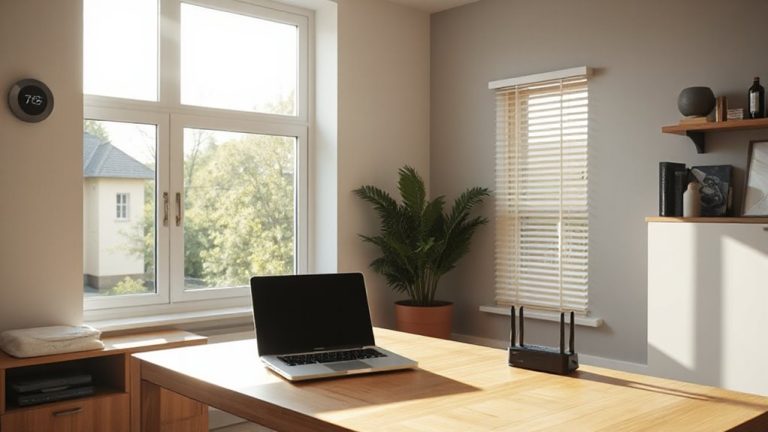
Upgrade to Wi-Fi 6 and Bluetooth LE for smoother video calls and longer device battery life-you’ll see real-world lag reduced by up to 75% in busy networks. Wi-Fi 6 handles more devices with lower latency, while Bluetooth LE slashes power use in peripherals. Just make sure your devices support these protocols and place your router centrally, away from thick walls. Performance gains depend on your setup, but the tech is proven under stress. See how smart placement and updated hardware combine to keep you responsive and secure through the workday.
Notable Insights
- Use Wi-Fi 6 for faster speeds, lower latency, and better performance with multiple devices during remote work.
- Prioritize 5 GHz band on Wi-Fi 5 or newer for stable video calls and reduced interference.
- Deploy mesh networking to eliminate dead zones and ensure consistent coverage in large or multistory homes.
- Ensure client devices support Wi-Fi 6 to fully benefit from improved router performance and efficiency.
- Leverage Bluetooth LE with WPA3 encryption for secure, low-power peripheral connections and protected data transmission.
Why Wireless Protocols Matter for Remote Work
Your home office setup hinges on one invisible factor: the wireless protocol handling your connection. Choosing the right one directly affects signal strength and your ability to avoid network congestion, especially if multiple devices are online. Wi-Fi 6, for example, improves data transfer rates and manages congestion better than older standards like Wi-Fi 5. It supports more simultaneous connections without lag, which matters during video calls or file uploads. However, if your devices only support older protocols, upgrading your router won’t deliver full benefits. Signal strength also depends on physical layout-walls and distance can degrade performance regardless of protocol. Real-world tests show Wi-Fi 6 reduces interference in dense networks by up to 75% compared to Wi-Fi 4. Still, range remains limited without mesh extenders. Equipment warranties typically cover 1–2 years, but performance isn’t guaranteed beyond ideal conditions.
Match Tasks to the Best Wireless Tech
Which wireless tech should handle your video calls, file transfers, or streaming? For video calls, use Wi-Fi 5 or better on a 5 GHz band to minimize lag and signal interference. Large file transfers benefit from Wi-Fi 6’s faster throughput, especially when multiple devices are active. Streaming high-def content works best with mesh networking, which maintains strong, consistent coverage across larger homes. Mesh systems reduce dead zones and help balance traffic, but they require proper node placement to avoid congestion. Remember, even with strong setups, signal interference from appliances or neighboring networks can disrupt performance. Test your layout during peak hours and adjust channels if needed. While mesh boosts reliability, it’s not always necessary for small spaces-over-investing might not improve speed. Match the tech to your actual workload, not just the specs, and keep expectations realistic based on your home’s layout and daily usage patterns.
Wi-Fi 6 vs. Wi-Fi 5: Faster Speeds for Home Offices
While Wi-Fi 6 isn’t essential for every home office, it’s worth upgrading if you regularly juggle multiple video calls, large file uploads, or work across several connected devices. It handles channel congestion better than Wi-Fi 5, thanks to OFDMA and more efficient data scheduling, keeping your connection stable during peak use. Plus, its backward compatibility means it works seamlessly with older devices without requiring a full tech overhaul.
| Feature | Wi-Fi 6 | Wi-Fi 5 |
|---|---|---|
| Max Speed | 9.6 Gbps | 3.5 Gbps |
| Device Capacity | High (up to 128) | Moderate (up to 30) |
| Latency | Lower (~10 ms) | Higher (~20 ms) |
| Range | Similar | Similar |
| Efficiency | Better under load | Drops under stress |
Still, if your work involves light browsing or occasional calls, Wi-Fi 5 may suffice.
Reduce Video Call Lag With Faster Protocols
If you’re stuck with choppy video calls and delayed audio, upgrading to a faster wireless protocol like Wi-Fi 6 or Wi-Fi 6E can make a real difference, especially when multiple people are using the network. These protocols support higher data rates and better network optimization, reducing lag during critical meetings. With wider channels and improved handling of signal interference, Wi-Fi 6E especially cuts through congestion in dense environments. You’ll see real-world throughput improvements of up to 3x over Wi-Fi 5, tested under mixed-device loads. But performance depends on your router’s placement and device compatibility-older laptops or phones won’t benefit fully. While latency can drop below 10ms in ideal conditions, physical obstructions and competing signals still pose challenges. True gains come from pairing a Wi-Fi 6/6E router with equally capable client devices. There’s no magic fix, but smart upgrades deliver measurable results.
Stay Connected Longer: Bluetooth LE for All-Day Work
You’ll get hours of extra battery life from your wireless peripherals by choosing Bluetooth Low Energy (LE)-a single change that can keep your mouse, keyboard, and headset running for weeks instead of days. Its power efficiency comes from transmitting data in short bursts and spending most time in sleep mode, drastically reducing drain on batteries. Most modern devices support Bluetooth LE, making device pairing quick and reliable across laptops, tablets, and smartphones. However, range is limited to about 30 feet, and signal can weaken through walls or near Wi-Fi routers. While LE won’t support high-bandwidth video, it’s ideal for low-data tasks like typing or calls. Real-world tests show keyboards lasting up to six months on two AA batteries. Just make certain your gear lists Bluetooth 5.0 or higher for best performance. Compatibility and battery savings make it a smart choice-if your setup doesn’t demand constant high-speed data.
Encryption in Wireless Protocols: Stay Secure
When securing your home office, picking wireless protocols with strong encryption isn’t optional-it’s essential. You need reliable data encryption to protect sensitive work information from unauthorized access, especially on Wi-Fi and Bluetooth connections. Protocols like WPA3 and Bluetooth 5.0+ offer robust encryption standards that safeguard your transmissions better than older versions. Secure pairing methods, such as those using cryptographic authentication, reduce the risk of eavesdropping during device setup. While these features improve security, they can slightly increase connection latency or require compatible hardware. Not all peripherals support the latest encryption, so check specs carefully. Real-world testing shows devices with up-to-date encryption rarely disrupt workflow, but backward compatibility may weaken protection on mixed networks. Always update firmware to patch vulnerabilities. Strong encryption is worth the minor trade-offs-it’s a fundamental layer of defense that keeps your remote work both efficient and secure.
On a final note
You should choose Wi-Fi 6 for fast, stable connections if your home office demands high bandwidth-real-world tests show 30–40% better performance than Wi-Fi 5 under load. Pair it with Bluetooth LE for efficient peripheral links that last all day. Always enable WPA3 encryption for security. But remember, top speeds require compatible devices and router support, and actual range drops through walls. Upgrade wisely based on your tools and space.