Positioning Monitors to Support a Central Document Holder and Keyboard Tray
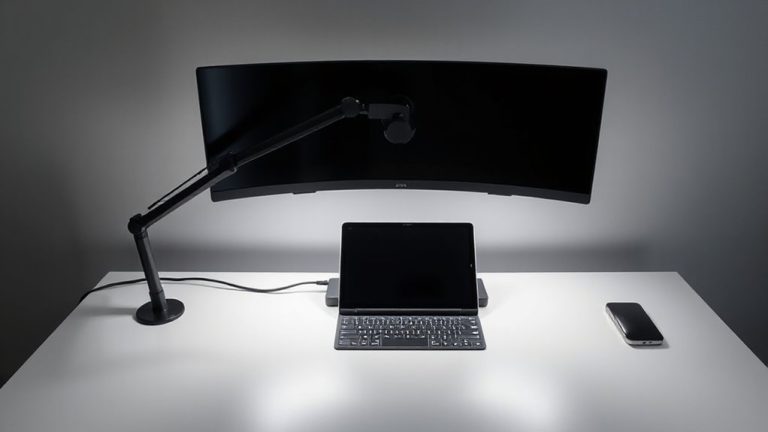
Use dual monitors at equal height and aligned to meet at the center, leaving space for a central document holder at eye level and 20–30 inches away. Position both screens and the holder so you won’t tilt your head or refocus excessively. Mount your keyboard tray at elbow height with negative tilt to support neutral wrists. Guarantee cables are managed and lighting avoids glare. A triple monitor arm helps alignment but demands sturdier desk grommets and weight capacity-check warranty (5+ years ideal). Small tweaks in placement over time improve comfort more than perfect initial setup alone. You’ll find deeper insights into long-term adjustments just ahead.
Notable Insights
- Position dual monitors symmetrically at eye level, meeting at the center to align with a central document holder.
- Place the document holder at eye level between the monitors, 20–30 inches away to minimize refocusing.
- Align monitor tops with the user’s eye level to maintain neutral neck posture during document reference.
- Mount the keyboard tray at elbow height to ensure straight wrists while viewing both screens and documents.
- Use a monitor arm and adjustable document holder to fine-tune positions for minimal head movement and glare.
Choose Between Single or Dual Monitor Setup
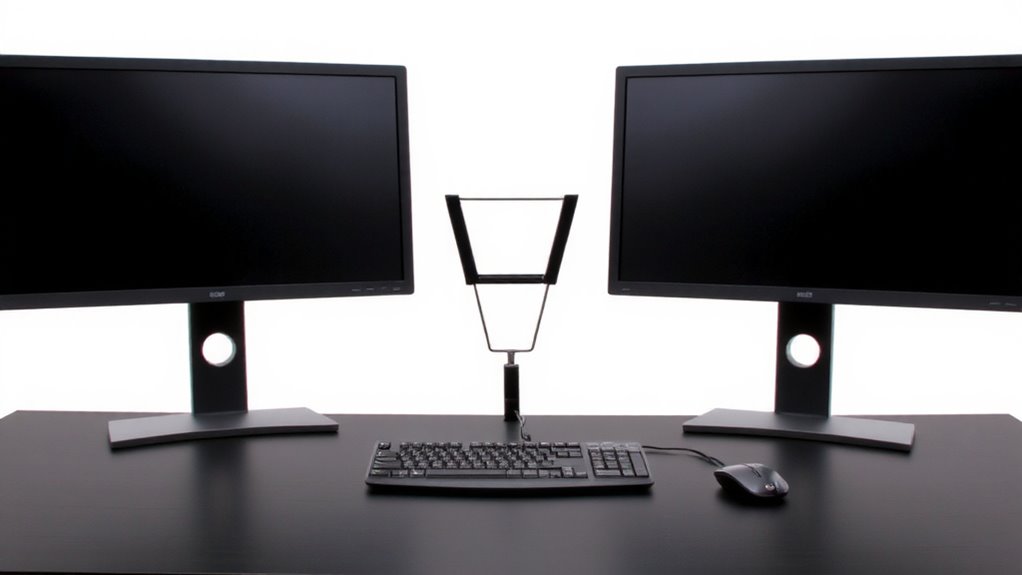
If you’re aiming to boost productivity without overcomplicating your workspace, a dual monitor setup is often the better pick-but it’s not always necessary. You’ll gain extra screen real estate for multitasking, especially if you align both monitors properly. Monitor alignment guarantees visuals flow smoothly between screens, reducing eye strain and head movement. Set both displays at the same height and angle, meeting at the center. Screen orientation matters too: use landscape for coding or spreadsheets, but switch one to portrait if you edit long documents or code. That boosts vertical visibility without scrolling. Just remember, dual monitors demand more desk space and graphics power. A single monitor works fine for basic tasks-especially if it’s 27 inches or larger with high resolution. Choose based on your workflow, not hype.
Position Your Monitor at Eye Level and Arm’s Distance
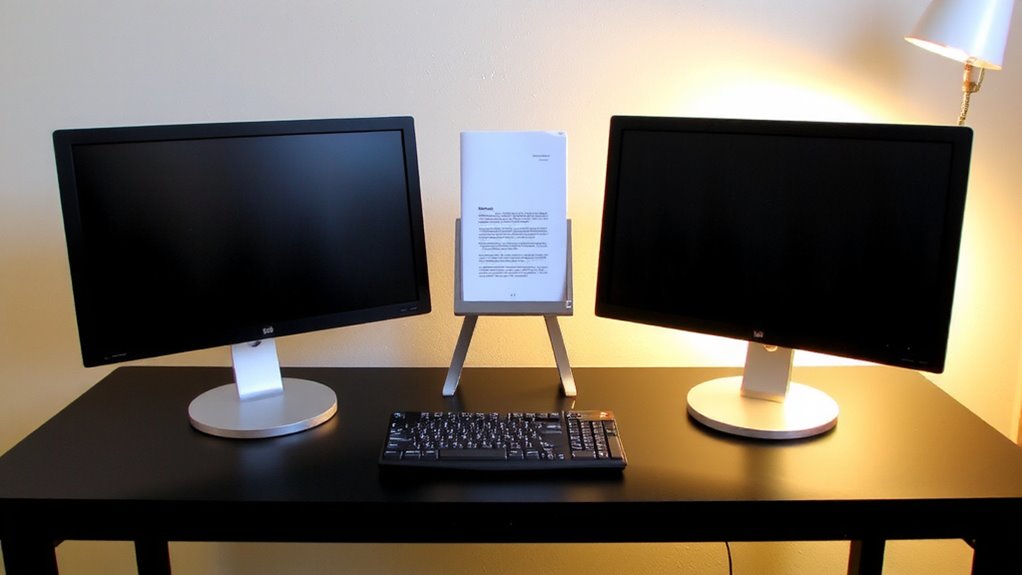
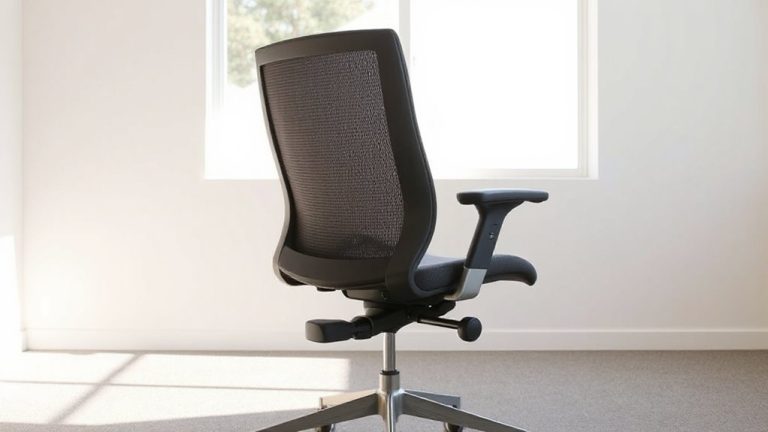
When setting up your workspace, placing your monitor at eye level and about an arm’s length away gives you the best mix of comfort and efficiency over long hours. Proper monitor height keeps your neck neutral, reducing strain during extended use. Your top line of text should sit at or just below eye level. Adjusting viewing distance-roughly 20 to 30 inches-helps minimize eye fatigue and supports focus. Sitting too close strains your eyes; too far forces you to lean forward. Most office chairs and desks allow fine-tuning, but fixed-height setups may require a monitor arm or riser. While monitor arms offer precise control, they vary in stability and ease of adjustment. Built-in lift stands on some premium models also work, though they limit range. Always test adjustments over a full workday. Results differ based on screen size and personal posture, so small tweaks often yield the best long-term comfort. For setups using multiple screens, consider a triple monitor arm to maintain optimal alignment and reduce desk clutter.
Place Your Document Holder for Easy Reading
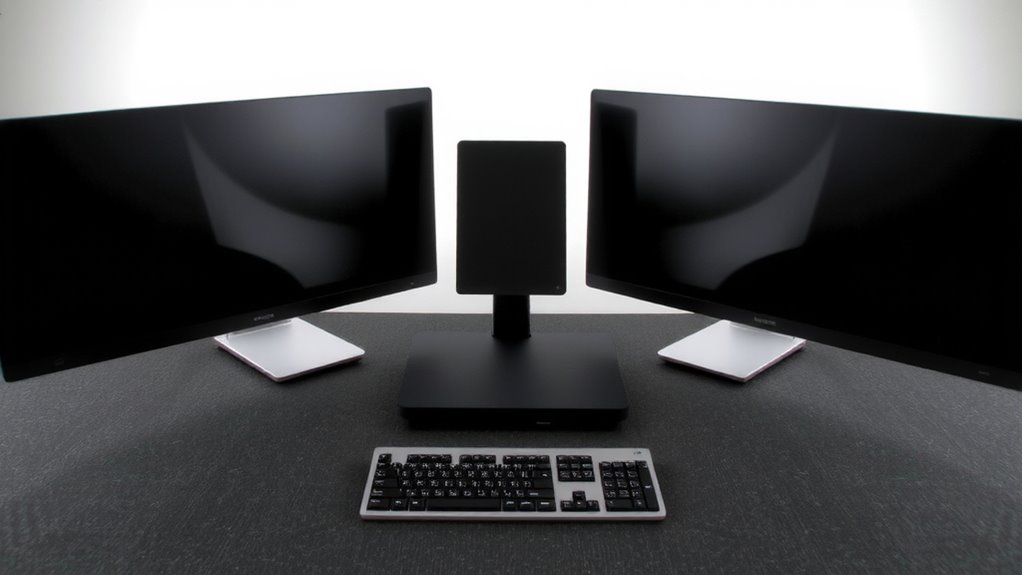
Though it’s often overlooked, placing your document holder correctly can make a noticeable difference in reducing neck strain and boosting typing accuracy. For best document placement, position the holder at eye level and directly between your monitor and keyboard, minimizing head movement. This setup supports visual clarity, letting you glance back and forth without squinting or leaning. Use an adjustable desktop holder or mount it to your monitor frame if space is tight. Keep the documents at roughly the same distance as your screen-about 20 to 30 inches-to prevent refocusing fatigue. Tilt the holder slightly upward to reduce glare, especially under overhead lighting. While freestanding holders are affordable and portable, clamp-on versions offer better stability. Just make certain clamps don’t damage your desk edge. Avoid placing documents too low or to the side, as this defeats ergonomic benefits. Proper alignment matters more than the gear you use.
Set Up Your Keyboard Tray to Reduce Strain
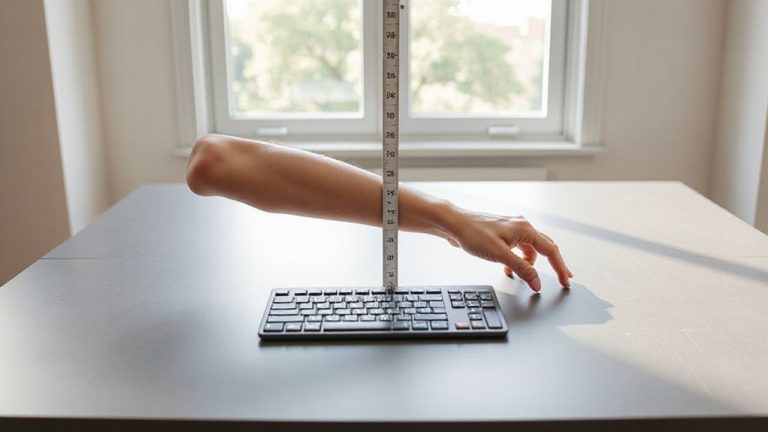
A keyboard tray can greatly reduce wrist and shoulder strain when set up correctly, especially if you’ve already positioned your monitor and document holder to minimize twisting and bending. You should mount the tray so the keyboard sits at about elbow height, allowing your forearms to stay level-an ideal setup for proper wrist alignment. Keep your typing posture neutral: wrists straight, not bent up or to the sides. Angled or negative tilt trays help maintain this, but avoid excessive adjustments that compromise stability. Make sure the space under your desk allows your legs to fit comfortably; some trays reduce knee clearance, which can offset benefits. Models with sturdy glide mechanisms and 180° lateral movement offer flexibility, but check weight limits and warranty-most reliable ones include at least a 5-year coverage. Proper setup matters more than brand.
Fine-Tune Your Layout for Comfort and Efficiency
Most people see real improvements in comfort and productivity after fine-tuning their workspace layout, but the gains depend on consistent, thoughtful adjustments-not just new gear. You’ll want to perform a lighting adjustment to reduce screen glare and eye strain; position lights to the side of your monitors rather than behind or directly overhead. Pair this with effective cable management-using clips or sleeves-to minimize clutter and maintain a clean, functional surface. A tidy workspace supports focus, but overly rigid setups can make daily changes harder. Test small shifts in monitor height, tray depth, and cord routing over a week. You might trade minor convenience for long-term comfort, especially if you switch devices often. There’s no universal “best” setup, but incremental refinements in lighting adjustment and cable management consistently deliver measurable benefits when tailored to your daily routine. Top Cable Management Solutions for a Clean Desk can help you choose the best cable management solutions for your specific needs.
On a final note
You’ll boost comfort and focus by aligning your monitor at eye level and about 20–30 inches away. A central document holder cuts neck strain, especially with tiltable models. A height-adjustable keyboard tray helps maintain neutral wrist posture. Dual monitors increase space but need careful alignment to avoid glare. Steel-frame trays and VESA-compatible mounts last longer-check warranty length. Test adjustments over a week; small tweaks make big differences.