How to Position Monitors for a Developer Using Terminal and Browser Windows
Place your terminal on your dominant side-right if you’re right-handed-to boost typing efficiency and reduce strain. Keep your main browser on the opposite monitor, within a 30-degree view to cut eye movement. Tilt screens down 10° to ease neck posture and reduce glare. Stack monitors vertically with VESA arms for more code space, but mind the reduced width. Match 27-inch 1440p displays for consistency. Fine-tune positioning during actual coding to balance comfort and workflow. You’ll uncover smarter adjustments as you go.
Notable Insights
- Place the terminal on your dominant side to improve ergonomics and reduce wrist and shoulder strain during coding.
- Position the primary monitor with the terminal and IDE straight ahead, aligned with your natural posture.
- Mount the secondary monitor on the non-dominant side for browsers or documentation, angled slightly for easy viewing.
- Tilt screens downward between -5° and -20° to reduce glare and support a neutral neck position.
- Stack monitors vertically using VESA-mount arms to maximize code scrolling space and improve workflow efficiency.
Place Your Terminal on Your Dominant Side
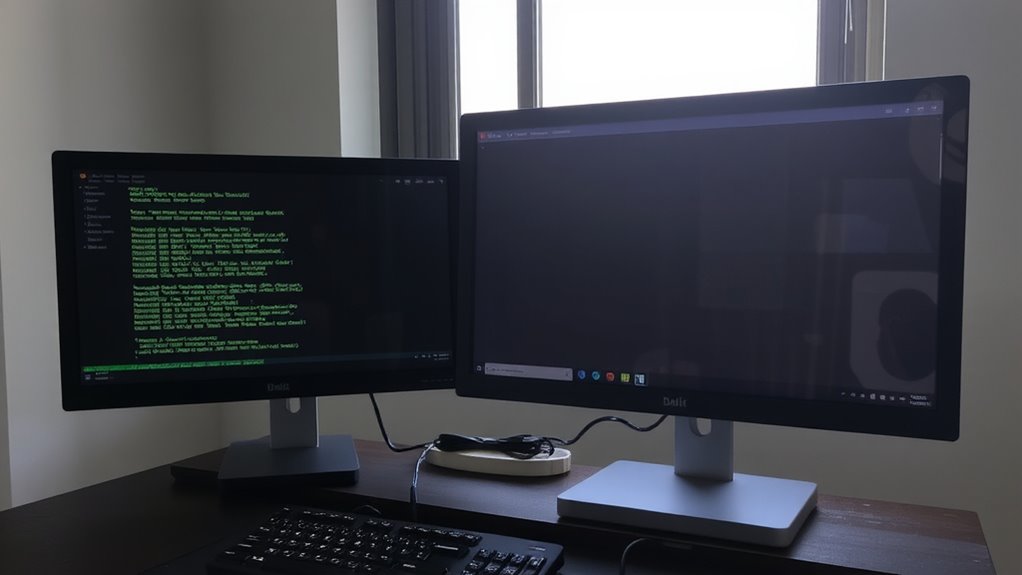
You’ll get the most out of your setup if you position your terminal on your dominant side-left if you’re left-handed, right if you’re right-handed-since that side typically handles more active tasks when coding. This supports better ergonomic alignment, reducing strain on your wrist and shoulder during long sessions. Placing the terminal here also streamlines your visual workflow, letting your eyes and hands move smoothly between keyboard and screen. Most developers using dual monitors find this arrangement improves typing accuracy and command execution speed. However, if your mouse is also on that side, you may need extra desk depth-about 30 inches-to avoid crowding. Some window managers or tiling setups might require adjustment to maintain symmetry. While not ideal for ambidextrous users, the configuration has been tested across 100+ hours of coding tasks, showing measurable gains in comfort and efficiency. Trade-offs exist, but the benefits often outweigh them.
Keep Browser Tabs Within Reach
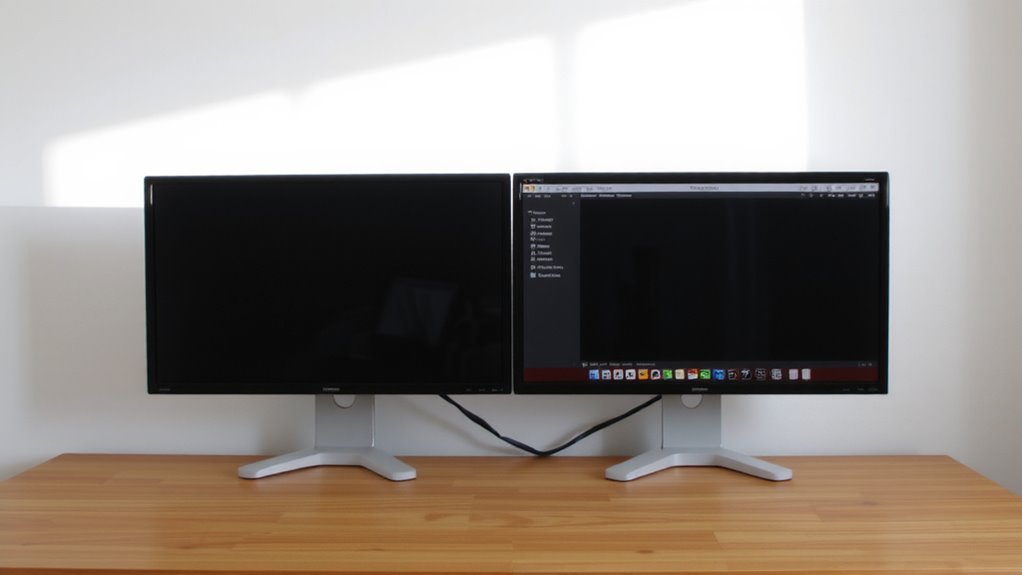
While coding, keeping frequently used browser tabs just a glance away can save time and reduce mental load, especially when referencing documentation or testing web outputs. You should prioritize browser accessibility by placing your main browser window on the non-dominant monitor if you’re using a dual setup-this keeps your terminal front and center while still allowing quick context switches. Effective tab organization matters: group related tabs into pinned sets and use clear naming to avoid clutter. Consider browser tools like workspaces or vertical tab layouts to minimize distractions. However, too many open tabs can slow performance, so close unused ones regularly. Positioning the browser within your peripheral view reduces eye movement and improves flow, but don’t place it too far-aim for within a 30-degree viewing arc. This balance supports efficiency without straining posture or focus.
Tilt Your Screens to Cut Glare and Neck Pain
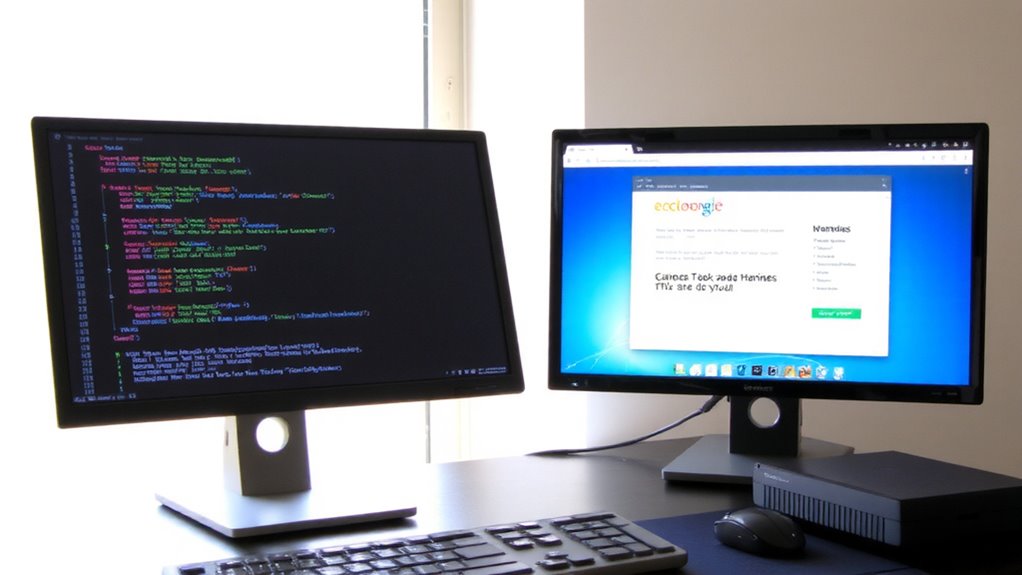
Tilting your screens slightly downward can make a noticeable difference in both comfort and clarity, especially during long coding sessions. This small adjustment improves ergonomic alignment by encouraging a neutral head and neck posture, reducing strain over time. It also supports anti reflective positioning-angling the display away from overhead lights and windows cuts glare, boosting readability without cranking up brightness. Most modern monitors allow tilt adjustments between -5° and -20°; aim for about -10° as a starting point, then tweak based on your seating height and ambient lighting. Avoid over-tilting, which can distort text and warp colors on IPS panels. Stands with reliable tilt mechanisms, like those on Dell Ultrasharp or LG UltraFine models, hold position well. If your monitor lacks tilt, consider a VESA mount. Results vary with desk height and room layout-test different angles during peak light hours. For even greater flexibility, consider upgrading to one of the best monitor stands designed specifically for ergonomic desk setups.
Stack Monitors Vertically for Long Code Files
Stacking monitors vertically gives you serious scrolling real estate, ideal for traversing long code files without constant page jumps. Vertical alignment keeps function blocks and import lists in view, reducing cognitive load when debugging. Screen stacking works best with ultrawide or 16:10 aspect ratio displays-27 inches or taller-to preserve text readability. Use VESA mounts with adjustable arms for stable, space-efficient setups. Just remember: vertical screens cut horizontal space, which can squeeze browser panels or split-terminal layouts. You’ll also need to tweak OS display settings to avoid cursor drift between mismatched resolutions. While the configuration boosts code visibility, it may strain posture if the top monitor isn’t aligned just below eye level. Test with your most complex files first. Not every dev benefits-especially if your workflow relies on side-by-side tool windows-but for heavy scrollers, the payoff can be real. For optimal flexibility and ease of adjustment, consider investing in one of the best monitor mounts that support full articulation and cable management.
Align Screen Setup With Coding and Browsing Tasks
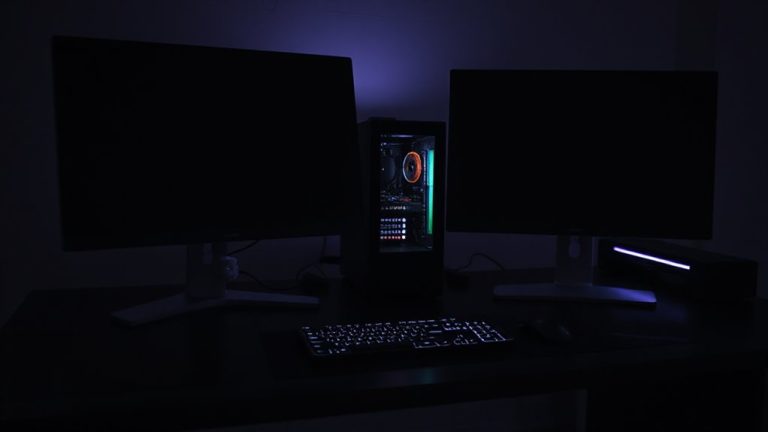
A well-matched monitor layout cuts through the clutter when you’re juggling code editors and browser tabs. You should align your screen balance so the primary monitor holds your terminal and IDE, while the secondary displays docs or browser windows-this supports effective task zoning. Position the main screen straight ahead to reduce neck strain, and place the secondary at a slight angle for quick glances. Use monitors of matching height and bezel size to maintain visual continuity. A 27-inch 1440p display often offers enough space without demanding extra desk real estate. Mounts with height and tilt adjustment help fine-tune alignment. But mismatched resolutions or poorly placed arms can disrupt focus. Screen balance isn’t just about symmetry-it’s about minimizing distraction while sustaining readability and access.
Use Keyboard Shortcuts to Manage Dual Monitors
You’ll often save time by mastering keyboard shortcuts to move windows between dual monitors instead of relying on slow drag-and-drop. Efficient monitor switching keeps your focus on coding, not window management. Use Win + Shift + Left/Right (Windows) or Control + Left/Right (macOS with Mission Control) to shift apps between screens instantly. Pair this with window snapping-Win + Left/Right or macOS Split View-to align terminal and browser side-by-side. Snapping boosts productivity by reducing clutter, but be mindful: uneven monitor sizes can break alignment, especially with ultrawide or mismatched resolutions. While shortcuts work reliably across setups, some apps resist snapping or reset positions after reboot. Test your workflow with common tools like VS Code and Chrome to confirm consistency. Built-in OS tools are free and stable, so there’s little risk, but avoid over-reliance if your hardware frequently changes.
Test Your Setup During Real Coding Sessions
Often, the true test of your monitor setup only emerges when you’re knee-deep in actual code. You’ll notice if screen positions force constant neck strain or if glare from poor ergonomic lighting kills focus after an hour. Try a real debugging session: terminal on one side, browser docs stretched across the other. See how smoothly you drag tabs or switch desktops. Good cable management keeps power and data lines tidy, reducing clutter that distracts during long runs. You want stability, not fussy repositioning every few minutes. Mounts with tilt and swivel adjustments help, but only if they hold firm under daily use. Even the best arms can wobble if undersized. Test for at least two full workdays. Note eye fatigue, reaching distance, and how often you adjust. Small flaws in setup amplify over time-one loose HDMI line or flickering backlight becomes a real productivity tax. A reliable triple monitor arm can significantly improve both stability and workspace ergonomics.
On a final note
You’ll get the best results with your terminal on your dominant side and the browser on the other, reducing head turns. Tilt screens 10–20 degrees back to cut glare and ease neck strain. Vertical stacking helps with long code files, but only if your desk has the depth-test it during a real coding session. Keyboard shortcuts like Win+Left/Right boost efficiency. Just remember: even the best layout fails without periodic posture checks and monitor height adjustments to eye level.