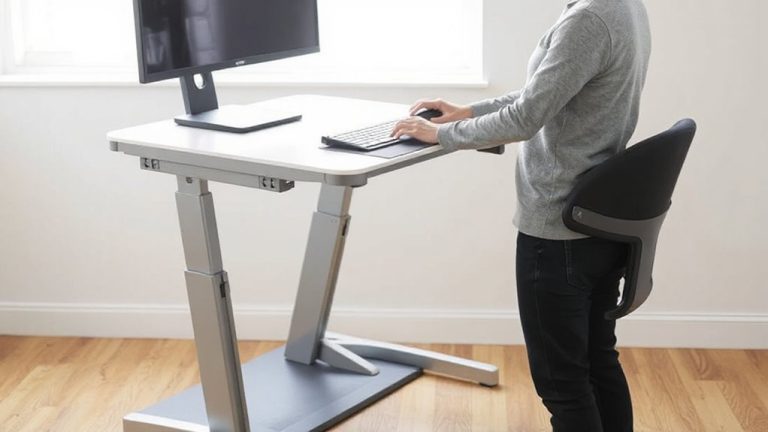
Aligning Your Desk So Keyboard and Mouse Are Within a 15-Inch Reach Radius
Keep your keyboard and mouse within 15 inches of your desk’s edge to reduce shoulder and neck strain. This setup helps maintain a 90-degree elbow angle and keeps your upper arms close to your body, cutting muscle fatigue. Use a negative-tilt keyboard tray if needed, and pair with an adjustable chair so your feet stay flat. Desks over 30 inches deep may require repositioning devices forward. Small tweaks like these prevent long-term strain while keeping your workspace efficient-especially if you spend hours at your desk.
Notable Insights
- Position the keyboard and mouse within 15 inches of the desk’s front edge to reduce shoulder and neck strain.
- Use a keyboard tray to bring input devices closer if the desk is too deep for proper reach.
- Keep elbows close to the body and forearms at 90 degrees for optimal ergonomic alignment.
- Ensure the chair height allows feet to rest flat while maintaining a 90-degree elbow angle.
- Tilt the keyboard downward 5–10 degrees to support a neutral wrist posture while typing.
Why Leaning Too Far Hurts Your Shoulders and Neck
If you’re stretching forward to reach your keyboard or mouse, you’re likely straining your shoulders and neck without even realizing it. This overreaching creates persistent shoulder strain and builds up neck tension, especially during long workdays. When your arms extend too far, your upper trapezius muscles stay locked in tension, leading to fatigue and discomfort. Over time, this posture increases risks of repetitive strain injuries. Keeping your devices within a 15-inch radius reduces muscular load, promoting a neutral arm position. You’ll work more comfortably, but don’t assume any single setup fits all-desk depth and torso length vary. Some sit-stand desks offer adjustable depth, which helps, but retrofitting existing furniture may require compromise. There’s no universal fix, but minimizing forward lean consistently lowers physical stress. Test adjustments over a full workweek to assess real impact.
Set Your Chair and Desk at the Right Height
Your chair and desk height directly determine whether your arms stay in a neutral, low-strain position or creep into angles that invite fatigue and injury. For most people, a desk height of 28–30 inches pairs well with an adjustable chair to keep elbows at 90 degrees. You also need proper seat depth and back support to maintain posture without pressure behind the knees.
| Feature | Ideal Setting |
|---|---|
| Chair Height | Feet flat, thighs parallel to floor |
| Desk Height | 28–30 inches for standard use |
| Seat Depth | 2–4 inches between knee and seat edge |
| Back Support | Lumbar curve matched, upright fit |
| Elbow Angle | Close to 90 degrees |
Adjust both chair and desk together-ignoring one undermines the other. While sit-stand desks offer flexibility, they’re not essential. Test adjustments over a full workday to assess real comfort. Adding a supportive anti-fatigue floor mat can further reduce discomfort during prolonged standing sessions.
Check How Far You Reach for Your Mouse and Keyboard
A well-placed keyboard and mouse reduce strain on your shoulders and wrists, keeping your arms within a comfortable arc of motion. You should check how far you reach during an ergonomic assessment-excessive extension can lead to fatigue and injury over time. Use posture analysis to spot warning signs like rounded shoulders or forward head position, which often stem from devices placed too far forward or to the side. Ideally, your elbows stay near your torso with forearm angles around 90 degrees. If you’re stretching beyond a comfortable range, your desk layout may need adjustment-even small shifts make a difference. Note that while compact setups help, overly tight spaces can limit movement. Avoid placing the keyboard at the edge if it forces wrist extension. Test reach consistently, especially after repositioning gear. Results vary based on body size and chair depth, so personalize your setup with patience. A dedicated keyboard trays solution can optimize alignment and support neutral wrist posture.
Keep Keyboard and Mouse Within 15 Inches
Placing your keyboard and mouse within 15 inches of the front edge of your desk is a practical rule of thumb for maintaining comfortable arm positioning during long work sessions. This range supports proper ergonomic alignment, reducing shoulder and forearm strain. Reach optimization means you don’t have to stretch or hunch, keeping your elbows near your torso at about 90 degrees. Most standard desks between 24–30 inches deep can accommodate this if you pull devices closer to the edge. But if your desk is shallow or packed with gear, you might need to reposition your monitor or use a compact keyboard. It’s not just about comfort-consistent positioning helps prevent long-term overuse injuries. Still, exact placement depends on your arm length and chair setup, so minor adjustments may be necessary. Avoid overcrowding the front edge, as that can limit wrist space.
Tilt Keyboard and Mouse to Support Your Wrists
Wrist angle matters just as much as reach when it comes to avoiding strain during hours of typing and mousing. To maintain proper wrist alignment, tilt your keyboard downward slightly (negative tilt of 5–10 degrees) so your wrists stay neutral, not bent upward. This reduces pressure on tendons and supports long-term ergonomic support. If your keyboard doesn’t have adjustable legs, consider a fixed negative-slope tray. Mice with contoured shapes can help, but avoid models forcing your wrist into ulnar deviation. Some users benefit from vertical mice, though they require an adjustment period. Guarantee the mouse surface stays level with or slightly below the keyboard to minimize lift. Don’t overlook padding-gel wrist rests may encourage resting while typing, which increases strain; use them only during pauses. Real-world testing shows consistent tilt adjustments reduce discomfort, but what works for one person may not suit another. A well-designed vertical mouse can further promote neutral wrist posture and reduce forearm strain.
Test and Adjust Your Setup for All-Day Comfort
You’ve set your keyboard at a negative tilt and positioned the mouse to keep your wrist neutral-now it’s time to see how well those choices hold up over a full workday. Test your setup by working through tasks as usual, noting any shoulder strain, wrist deviation, or eye fatigue. Adjust height or distance in small increments-comfort isn’t instant. Ergonomic lighting should reduce glare without creating shadows on your keyboard or screen; position lamps to the side, not directly in front or behind. Good cable management keeps power and data cables secured, minimizing desk clutter and accidental tugs. Use sleeves or clips to route cords cleanly, but avoid over-tightening. You might feel fine at first but develop discomfort after hours-this is normal. Reassess weekly, especially if you switch between sitting and standing. No single setup works forever, so stay flexible and responsive to your body’s feedback.
On a final note
You should keep your keyboard and mouse within a 15-inch reach to reduce strain on your shoulders and neck. Sitting too far forces you to lean, which builds tension over time. Set your chair and desk so your elbows stay at 90 degrees and wrists stay flat. Tilt keyboards slightly down for comfort. Test adjustments over a few days. Some setups need trade-offs for space or device compatibility, so find what works for your body and gear.